
Verify your app with the browser agent
Check real user flows, capture useful evidence, and turn failures into precise bug reports.
Sources checked / updated · 8 min read
Before you start
Have a local application running and know its exact URL. The reading-list exercise works well here. Use sample data so you can repeat the checks without affecting real users.
Antigravity can operate a local Chrome browser and produce screenshot or recording artifacts. Browser tools must be enabled in its settings; see the official browser overview for current behavior and setup guidance.
1. Establish a baseline
Open the local URL yourself. Confirm that the page loads before involving the agent. If the application uses authentication, confirm the test account and browser session are ready. A browser connection failure and a broken application are different problems.
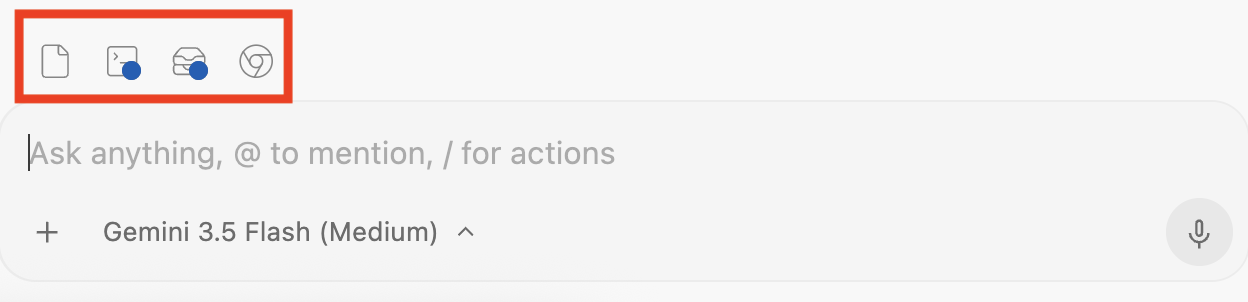
The official IDE toolbar places Browser beside Artifacts. Use these entry points to inspect the running session and its evidence.
Unmodified official sample screenshot · Source: Google Codelabs · CC BY 4.0 · Click to enlarge
Prepare a small test sheet
Write down the app URL, the version being tested, and the starting data. For the reading-list exercise, use the same browser profile throughout and begin with an empty practice list. If you keep existing sample data, name the two new test items distinctly so the expected count is unambiguous.
Keep the development server running. If it switches to another port because the original is busy, update the test prompt. localhost:3000 in the example is a placeholder, not a guarantee about your project.
| Check | Starting point | Expected observation |
|---|---|---|
| Add | Empty practice list | One new row with the submitted title. |
| Filter | One read and one unread item | Only the unread item remains visible. |
| Persistence | Two saved items | Both return after a reload in the same origin. |
| Narrow screen | A long title and both actions | Controls stay reachable without page-wide sideways scrolling. |
2. Request an observable test
Replace the URL in this original prompt with the address printed by your development server:
Test the reading-list app at http://localhost:3000.
Use synthetic titles and https://example.com as the sample URL.
Add two items, mark one read, filter unread, reload, and delete one item.
Also try an empty title and an invalid URL.
For each case record: action, expected outcome, actual outcome, pass/fail.
Check a 390px-wide layout if viewport controls are available.
Capture evidence for failures. Do not fix code during this first pass.
If browser access is unavailable, report that limitation explicitly.
Keeping the first pass observational makes the report easier to interpret: you know which version was tested and which failures existed before any fix.
3. Read the evidence
A screenshot can show layout or an error message. It cannot by itself prove that state survived a reload. For that check, look for an action sequence showing the saved item before and after navigation.
For narrow screens, inspect whether the input and submit button remain usable, long titles wrap, and every list action can be reached. Do not accept a report that only says the page looks good.
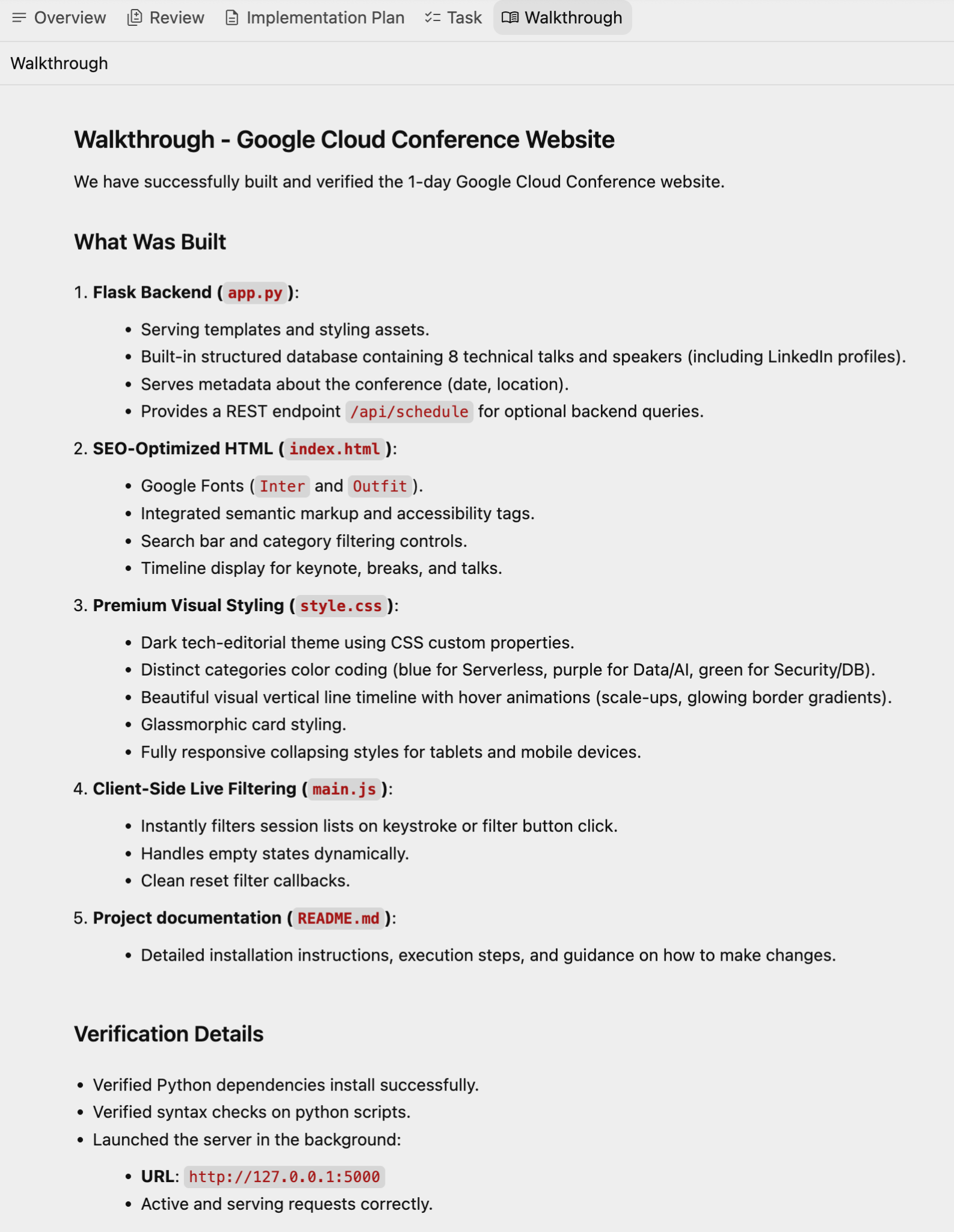
This is the official conference-site example in the Antigravity app. Read Verification Details separately from the feature list; it is not evidence that our reading-list exercise has passed.
Unmodified official sample screenshot · Source: Google Codelabs · CC BY 4.0 · Click to enlarge
Match the evidence to the claim
| Claim | Useful evidence | What it cannot establish alone |
|---|---|---|
| The form fits on mobile | Screenshot at a stated narrow viewport | Whether submitting the form saves an item. |
| Data survives reload | Recorded steps or before/after observations with the same URL | Whether a different browser profile will share the data. |
| Validation rejects an invalid URL | Actual submitted value, message, and unchanged row count | Whether every valid URL is accepted. |
| The application builds | Command, exit status, and relevant output | Whether a real interaction works. |
The walkthrough should distinguish a completed action, an expected result, and an untested claim. Open the linked evidence and compare it with the written summary.
4. Fix and repeat
Pick one failed case. Ask for a minimal correction with the same acceptance criterion, then rerun that exact input sequence. If a validation fix changes form handling, also retest one valid submission.
If the agent cannot access the page, check the server process and port, then the browser-tools setting. If a test depends on unavailable login or browser controls, mark it blocked rather than passed.
Give the agent a reproducible bug report
The following is an illustrative failure report, not a result measured on your app:
Case: delete after filtering
Version: [commit or checkpoint]
URL: [exact local URL]
Setup: Alpha is read; Beta is unread.
Steps: select Unread, delete Beta, switch to All.
Expected: Alpha remains, Beta is gone.
Observed: Alpha is gone and Beta remains.
Evidence: [recording or screenshots from your actual run]
Fix this case, then repeat it and a normal add/reload check.
If the browser cannot connect, check the URL and server first. If it connects but the expected element is missing, confirm the route and starting data. If the same test passes only sometimes, record the timing and loading state before requesting a broad rewrite.
Completion checklist
Keep a short record of the URL, version or commit, tested flows, remaining failures, and evidence locations. The goal is a reproducible result that another person can check, not a long transcript.
Next: make your review process reusable with Rules and Skills.